
Your website has a cookie banner. The banner asks visitors for permission. Here's the question almost nobody can answer: does the site wait for that permission, or does it start sending data to Google and Meta the moment the page loads?
On most sites, it doesn't wait. The banner and the tracking are two separate systems that never talk to each other. The banner asks, and while it's asking, the tags fire. This is the pattern behind the privacy demand letters landing on ordinary businesses right now, and you can check your own site for it in about five minutes. No technical skills needed, just Chrome and the steps below.
Step 1: Start a clean window
Your normal browser remembers things: past cookie choices, extensions, logins. Any of those can change what the site does, so the check starts fresh.
In Chrome, click the three-dot menu in the top right corner, then New Incognito window.
Check before moving on: the new window is dark and says "You've gone Incognito." If you use an ad blocker and you've allowed it in Incognito, turn it off for this check. Ad blockers stop the exact requests we're trying to see, and a check run with one on will tell you everything is fine when it isn't.
Step 2: Turn on the request log
In that Incognito window, before typing any address, press F12 on Windows or Cmd + Option + I on Mac. A panel appears; this is Chrome's DevTools. Click the Network tab along its top edge.
The Network tab records every request the page makes: every image, every font, and every packet of data sent to a tracking company. Most of that is noise, so paste this into the filter box at the top left of the panel:
/collect|doubleclick|googletagmanager|google-analytics|facebook|tiktok|hotjar|clarity/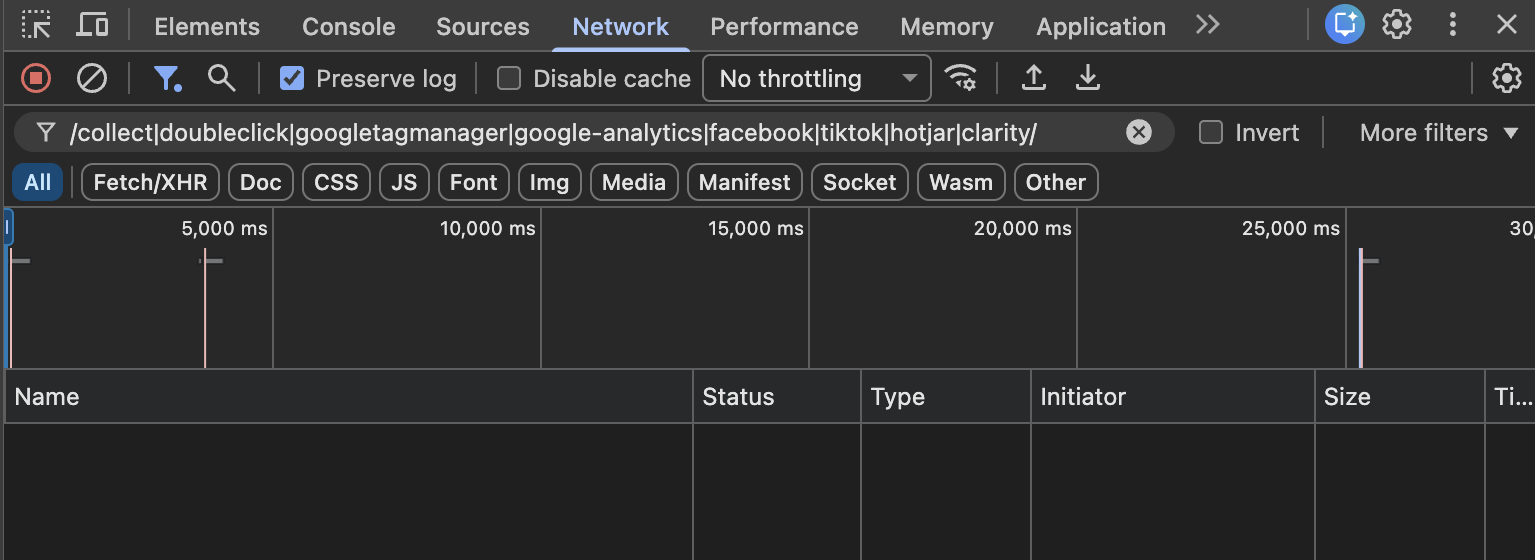
The filter with the pasted line in.
The slashes at each end matter. They tell Chrome to treat everything between them as a pattern matching any one of those names. Paste it without the slashes and Chrome hunts for that entire line inside a single web address, finds nothing, and shows an empty list that looks like good news and isn't.
That filter hides the noise and keeps the rows that matter: requests to Google's analytics and advertising systems, Meta, TikTok, and the two most common session-recording tools.
Check before moving on: the filter is in the box with a slash at each end, and there's a red record dot at the panel's top left. Red means recording.
Step 3: Load your site and touch nothing
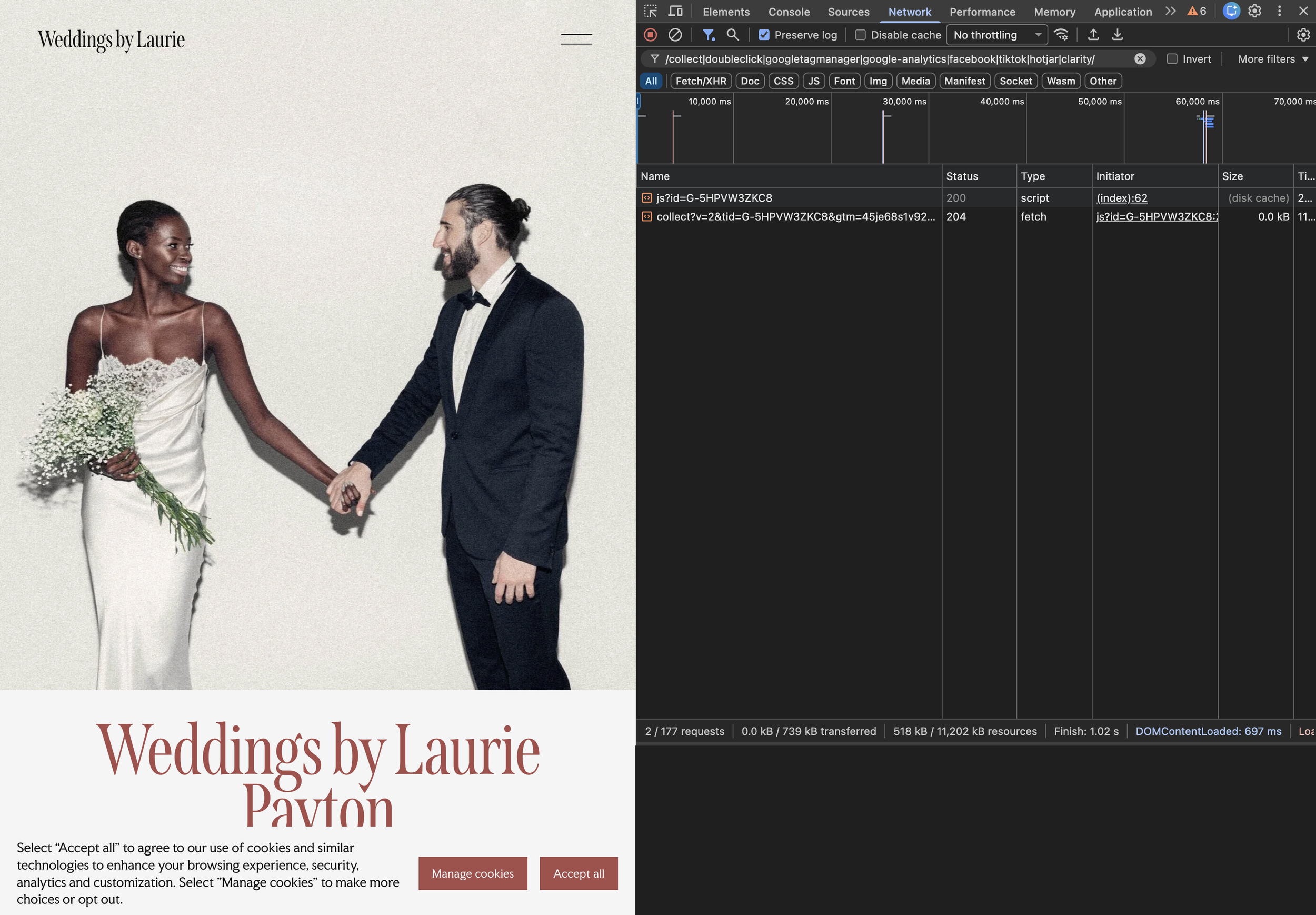
In the address bar of that same window, type your website's address and hit Enter. Then take your hands off the keyboard. Don't scroll. Don't click. And above all, don't answer the cookie banner. Count to fifteen.
The point of not touching anything: every row that appears in the Network panel during those fifteen seconds happened before anyone gave permission. There's no ambiguity in that. The visitor was never asked, or was asked and hadn't answered, and the data went out anyway.
Check before moving on: your cookie banner is on screen, unanswered, and fifteen seconds have passed.
Step 4: Read what you caught
Look at the filtered rows in the Network panel. Here's what the common ones mean:
googletagmanager.com is Google's tag loader arriving. On its own it proves the machinery loaded, and the rows below show whether the machinery ran.
google-analytics.com or analytics.google.com, especially rows containing collect: your site sent visitor data to Google Analytics. The visitor got an ID and their page view was recorded.
stats.g.doubleclick.net: the same visit was mirrored to Google's advertising system. This one surprises people, because nobody remembers adding it. It rides in with Analytics.
facebook.com/tr or connect.facebook.net: the Meta Pixel fired and reported the visit to Meta.
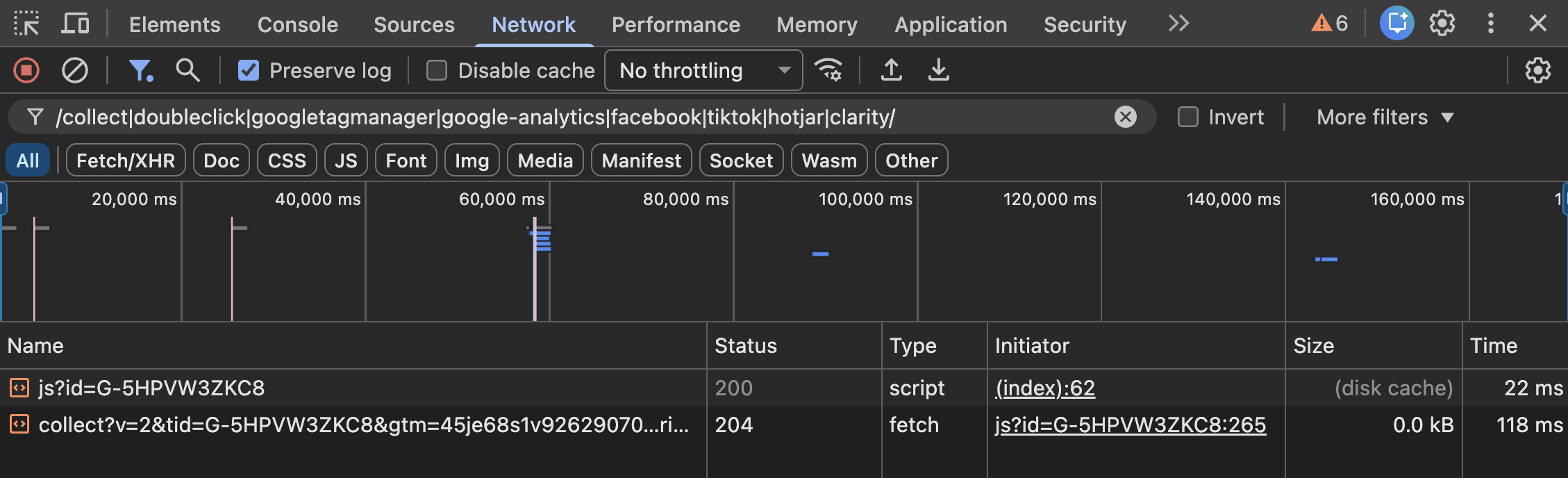
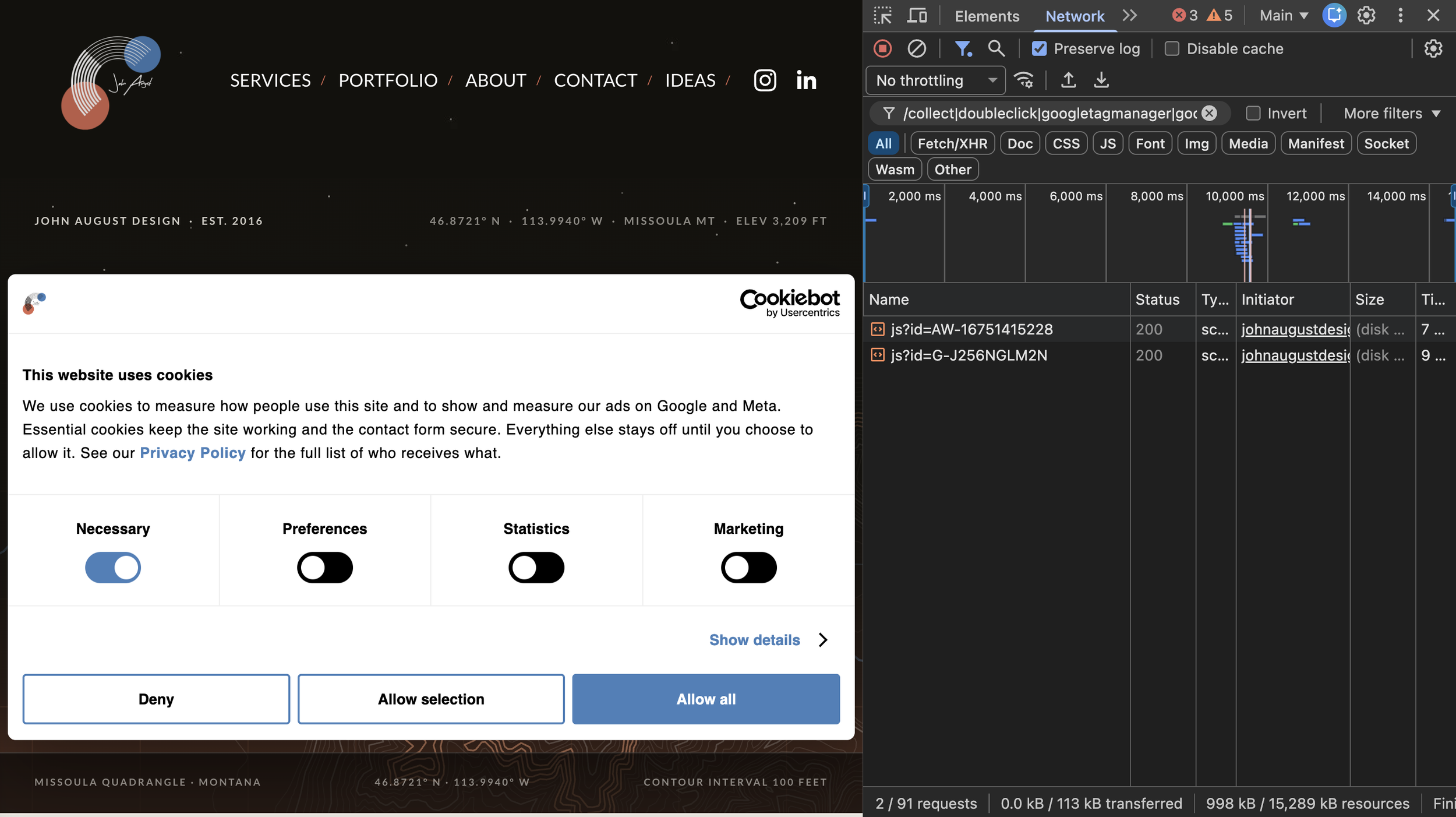
One nuance so you don't scare yourself: on a site set up with Google's Consent Mode, the googletagmanager.com loader can appear before consent while sending nothing. That's the tag loading, being told consent is denied, and holding. The loader waiting for permission is the design working.
The number that matters: how many rows that transmit appeared before you touched anything: the collect rows, doubleclick, facebook.com/tr. On a site that waits for consent, that count is zero, even when a loader row shows up and holds. On a standard Squarespace, Wix, or WordPress-with-plugins setup, we routinely see three or four transmitting rows within the first three seconds. On one recent capture, Google had assigned the visitor an ID within 2.6 seconds of the page loading, with the banner still on screen.
Step 5: Compare it to your privacy policy
Open your privacy policy in another tab and find the part about analytics or cookies. Now hold it against what you just watched. Three outcomes:
You don't have a privacy policy. That's its own finding, and it's more common than you'd think. We've caught it on sites we admire, including, at one point, our own.
The policy says data is collected only after consent. You just watched the site contradict it. A policy that promises consent-first while the site fires early is worse than no statement at all, because now the site is doing something in writing it says it doesn't do.
The policy accurately describes what happens. Rare, and worth confirming with a fresh check whenever the site changes.
Why the banner doesn't save you
Here's the part that catches nearly everyone: on Squarespace, the built-in cookie banner is a notice by default, without blocking anything. Squarespace's own documentation recommends a specialist consent tool for full cookie management. The banner being on screen tells you nothing about whether the tags waited. Wix, and most WordPress banner plugins in their default configuration, behave the same way. The only way to know is the check you just ran.
What to do with what you found
First, breathe. Tags firing before consent doesn't mean you're getting sued tomorrow, and whether it creates legal exposure in your state is a question for an attorney, never for a web designer or a blog post.
What we can tell you is that the fix is real and specific: remove the early-firing tags, install a consent tool that blocks until the visitor answers, reconnect your analytics behind it so you keep your data on visitors who say yes, and publish a policy that matches what the site now does. That's exactly what our privacy & tracking audit covers, starting with a documented capture of your site done the way you just did it, only across every consent state, with a written report your attorney can use.
Found rows in step 4 and want them gone? Request an audit and we'll take it from there.